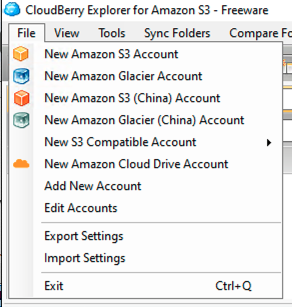
Click File -> Edit Accounts:
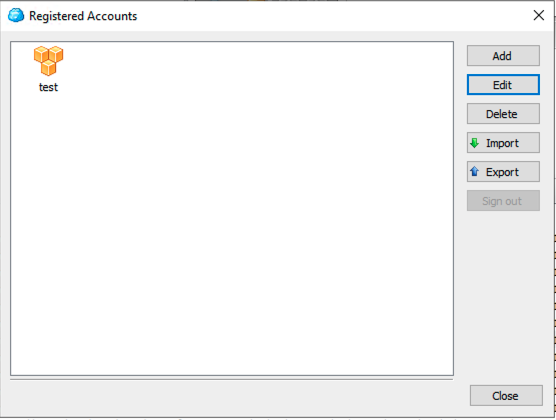
The Registered Accounts screen will appear, select an account and hit the Edit button:
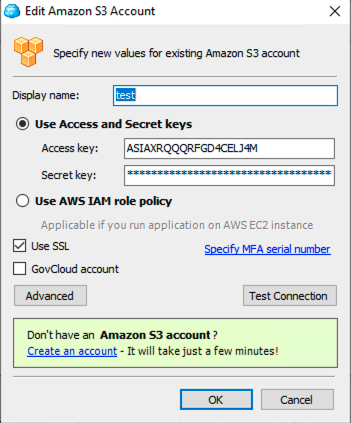
In the resulting screen, you will see a section with “Access Key” and “Secret Key”. These are the values you will need to replace.
Once complete, click the OK button, and test to make sure you can connect with the new key successfully!
Repeat this process for all accounts
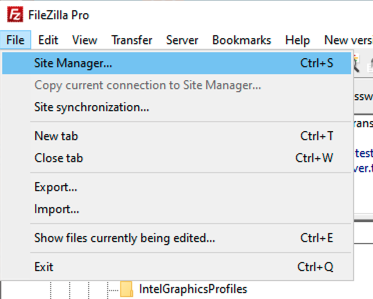
Click File -> Site Manager:
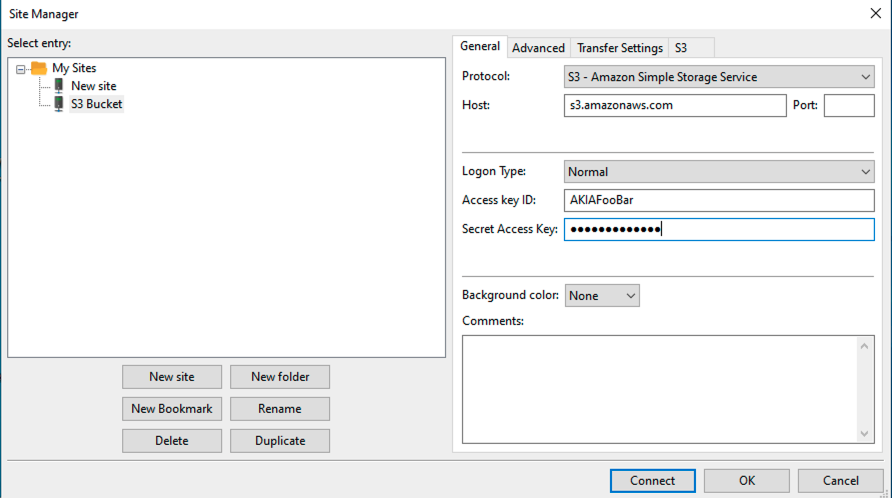
From the Site Manager Window, select an entry in the left hand window that references S3 storage.
On the right, you would update the “Access Key ID” and “Secret Access Key” fields with your new access key credentials.
Click OK, and test to make sure your access still works as it should.
Repeat this process for any other entries in the Site Manager that reference S3.
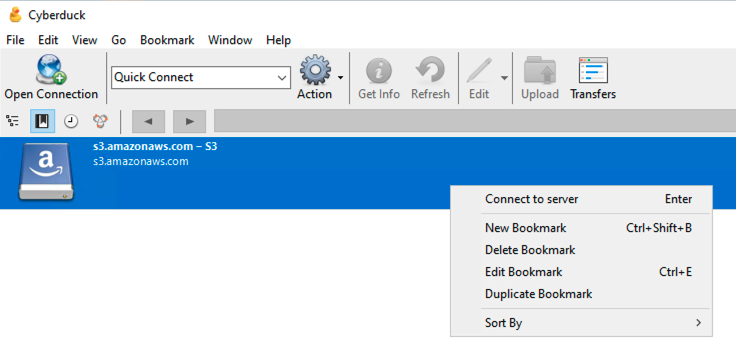
In the Bookmarks screen, right click on a bookmark for an S3 connection, and select “Edit Bookmark”:
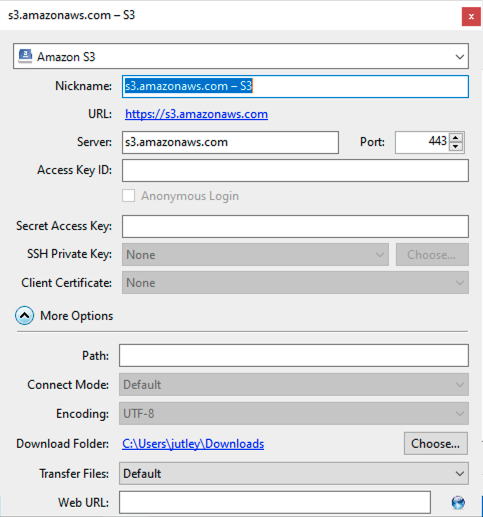
In the resulting page, you would update the “Access Key ID” and “Secret Access Key” fields with your new access key credentials.
Once done, close the screen, and go ahead and test the connection to make sure it still works.
Repeat this process for any other bookmarks you have that refer to S3.